



From time to time people ask me how one goes about recording audio onto the computer.
The first thing you need to record is a microphone. As far as I know, most computers aren’t made with one built in.
Before buying a microphone, you need to figure out where you can plug it into your computer. It sounds so basic – and it might be – but you’ll need that information to know what type of plug your microphone should have (USB, standard microphone jack, etc.).
If you have a free USB port, that’s the best choice. A USB port will give you a digital recording, which makes it easier to produce a clean sound.
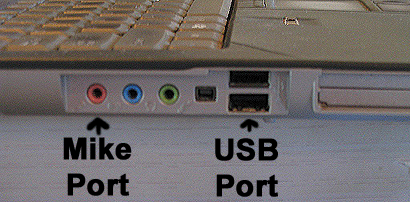
The photo below shows what a USB port looks like – it’s the dark one to the right. The red port on the left is a standard microphone port.
Here’s what some microphone jacks and plugs look like. (The two on the left are USB jacks.)
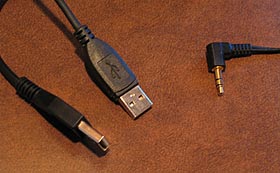
(You should be aware that USB microphones will only work on computers – they can’t be plugged into cassette decks and things like that.)
The microphone I have stands on the tabletop and plugs into the USB port. It costs US $24.00. It’s called Logitech USB Desktop Microphone. (It’s the top microphone in the photo below.)
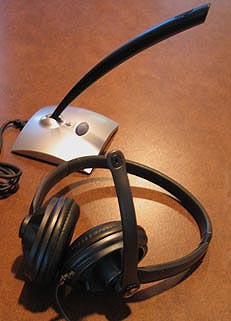
My husband makes longer recordings. He’s produced podcasts of The Wizard of Oz among other things. So he likes a microphone headset that is worn on the head. It’s called Logitech Premium USB Headset 350. It’s now being sold for US $25 to $35.00. (It’s the lower headphone set in the photo above.)
Once you have a microphone, you’ll need software to record into.
My husband and I usually use a program called Sony Soundforge, which costs about US $52.00 and gives many professional level mixing tools. The truth is, we usually don’t use any of that power!
Yesterday, Paul DeShaw wrote to me about Audacity software. It’s a Free Audio Editor and Recorder. Paul wrote “There is simple software available for all operating systems for recording. Audacity is one such program, freely available at http://audacity.sourceforge.net/.”
I haven’t tried Audacity yet. But it looks like it will take care of basic recording operations and it looks easy to use.
If anyone would like to share any other information about recording onto the computer and/or recording devices, please feel free to comment below.
-Lisa
This article was posted on Thursday, December 7th, 2006 at 1:10 pm and is filed under Mama Lisa, MP3 Recordings, Podcasts, Recommendations, Recordings of Nursery Rhymes, Recordings of Songs. You can follow any responses to this entry through the RSS 2.0 feed. You can skip to the end and leave a response. Pinging is currently not allowed.






















December 8th, 2006 at 3:52 am
Just wanted to chime in that if you have a Mac, nothing is simpler than Garage Band, which comes installed.
December 8th, 2006 at 10:49 am
That’s good to know. What format can you save files in (i.e. wave, mp3, etc.) when you use Garage Band?
I installed Audacity on my laptop last night. I was able to record with it easily enough – but its files are not in the typical wave or mp3 format. In order to put it in wave format you have to choose “File, Export as WAV”. You have to download special software if you want to make your recording an mp3.
All computers should be able to read both waves and mp3’s. But mp3’s are more compressed.
If you’re emailing me a song you recorded, you can send me it in either format. I can turn a wav file into an mp3.
December 8th, 2006 at 2:37 pm
You can create MP3’s in Audacity by downloading the LAME MP3 Encoder. You can find links to do that from the Audacity download page.
It’s a little tricky to get working (at least on a PC) but once you do, you just choose Export to MP3 from the Audacity file menu and it works fine.
December 11th, 2006 at 1:28 am
You can easily save in just about every format (I think!) from Garageband.
January 5th, 2007 at 4:01 pm
i have a microphone that would plug into the pink port but i’m having trouble recording from there? what do i need to do?
January 5th, 2007 at 8:26 pm
You’ll need software to record into – like mentioned above.
January 22nd, 2007 at 8:57 pm
I have a usb headset and was wondering how to record with it on audacity?
January 22nd, 2007 at 9:20 pm
There seems to be a good explanation about recording with Audacity at:
http://www.polyglot.pitt.edu/how/audacity.pdf
It has pictures too! Let us know how it works out.
January 22nd, 2007 at 9:41 pm
thanks, i’ll check that out. Quick response
August 9th, 2007 at 5:25 pm
WHat I would like to know is I have a behringer 700 mixer and I have audacity. I have two cdj turntables.
So, I am a dj yes. Know, I don’t want to spend 300 bones on a program. Can I record from my mixer onto audacity. I can record an hour long mix consisting of 10 or so tracks being merged together over that time.
October 8th, 2008 at 9:32 pm
Heather sent me some recordings for Mama Lisa’s World. She wrote:
“I recorded these on my iPod, edited them in Audacity, then exported them from Audacity as mp3’s.”
They came out to be of good quality.
Mama Lisa
April 9th, 2010 at 9:23 pm
You challenged me to try something new, and you have my thanks with a link from my place : )